Creating a Bank Account
Add a bank account to the Salesforce PostGrid app to enable check sending in the United States and Canada.
To send checks through Salesforce, you first need to create a bank account within the platform. Currently, we only support check sending via Salesforce in the United States and Canada.
Creating a new Bank Account
Section titled “Creating a new Bank Account”1. Click on Bank Accounts and click on “New”
Section titled “1. Click on Bank Accounts and click on “New””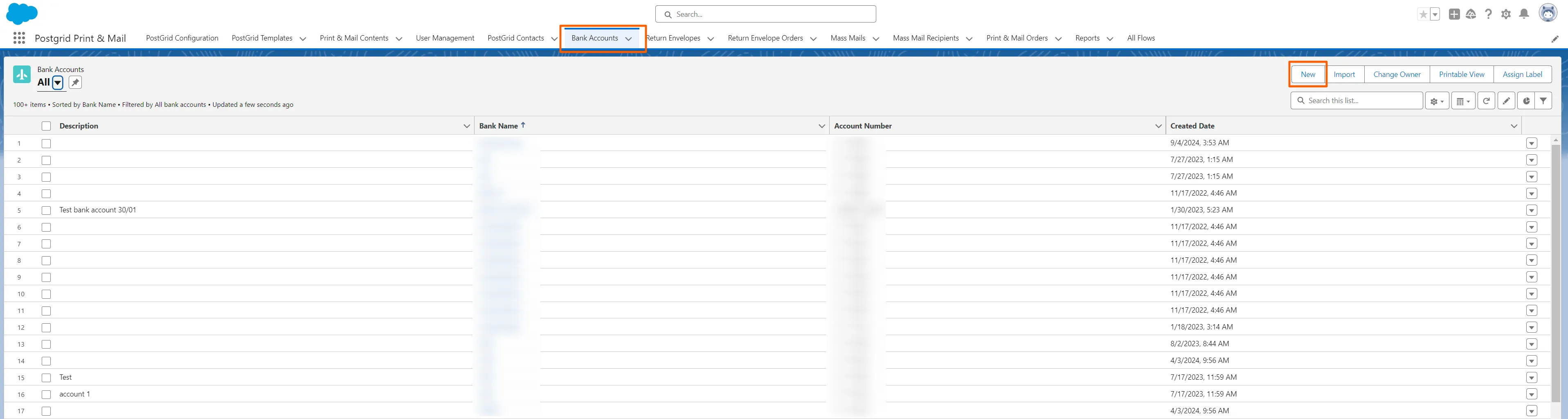
2. Choose a country
Section titled “2. Choose a country”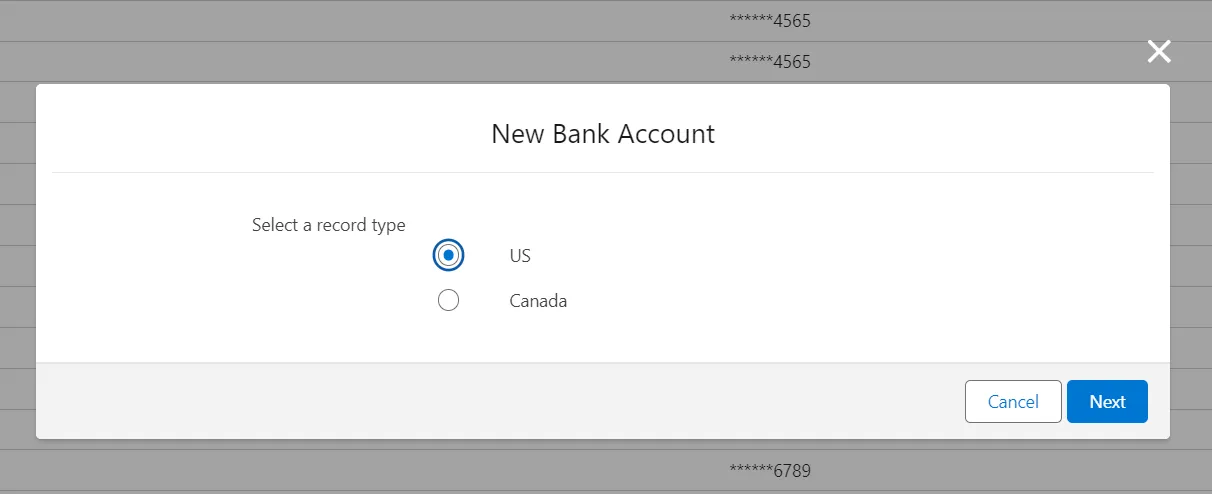
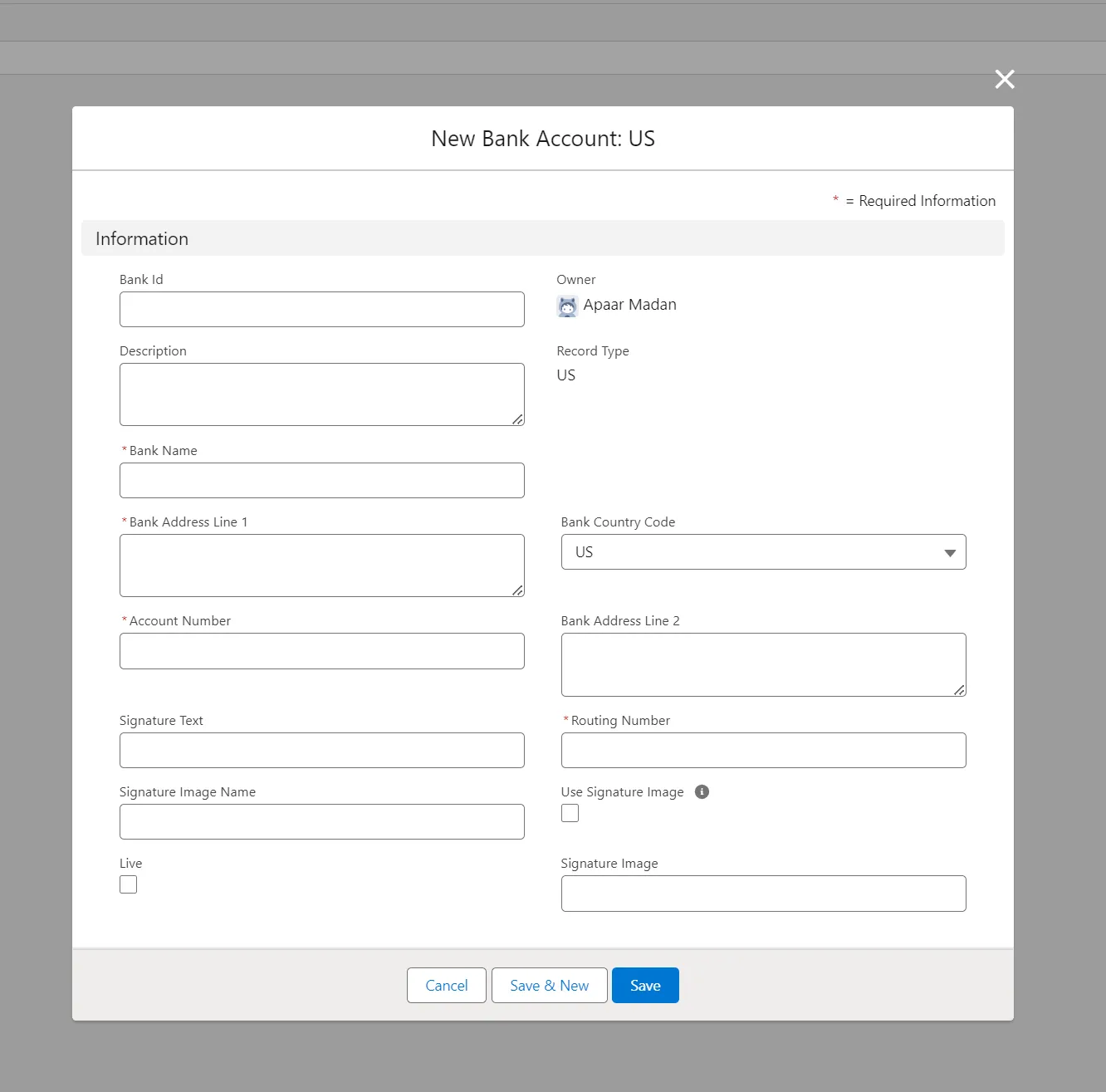
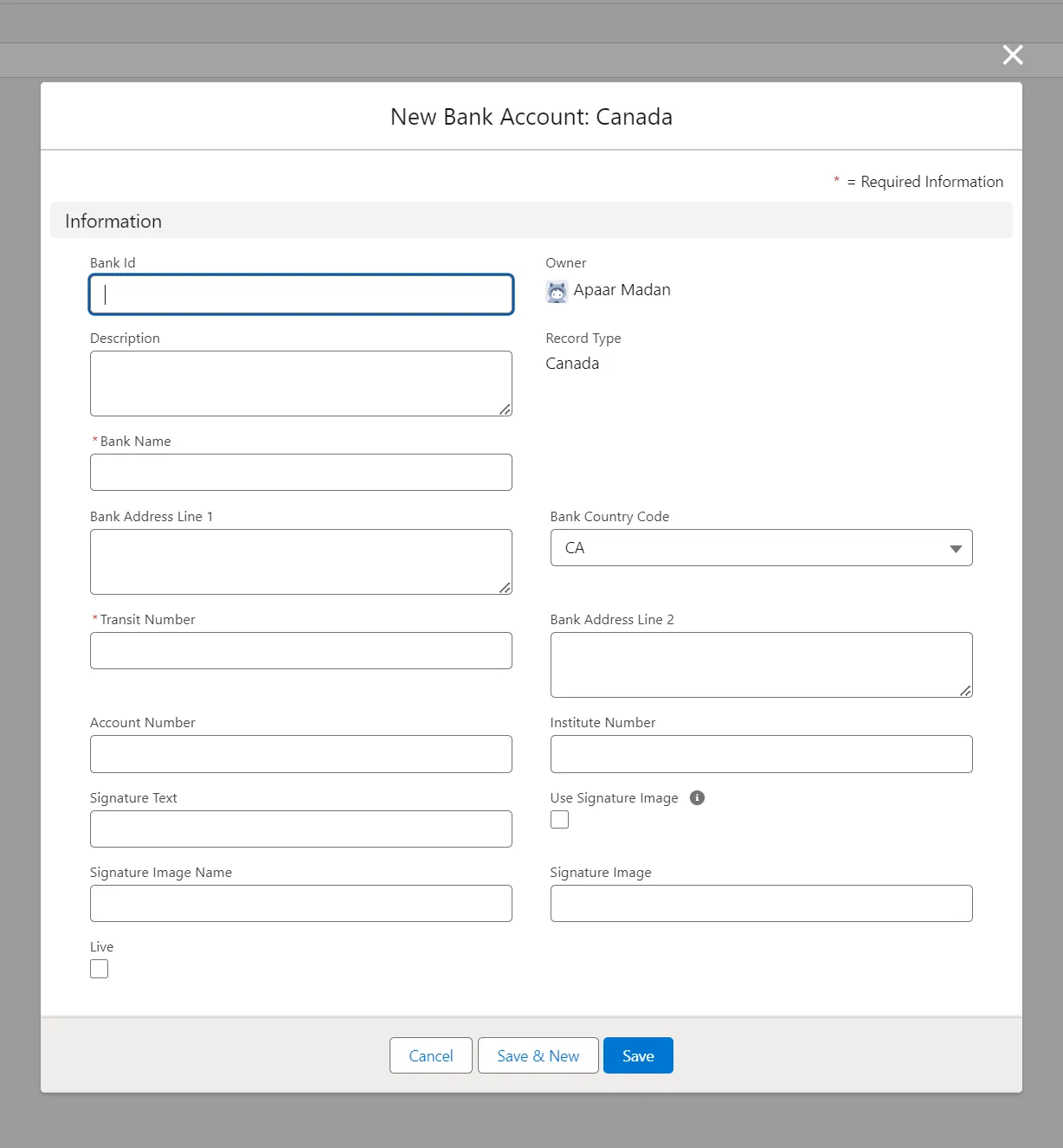
3. Enter the required bank information and click on “Save”
Section titled “3. Enter the required bank information and click on “Save””- The required bank account details will vary depending on the country you select.
- If you want to use an Image for your signature click on the “Use Signature Image” checkbox
4. Once the bank account is successfully created click on “Sync Bank Account” to add the bank account to the PostGrid Dashboard
Section titled “4. Once the bank account is successfully created click on “Sync Bank Account” to add the bank account to the PostGrid Dashboard”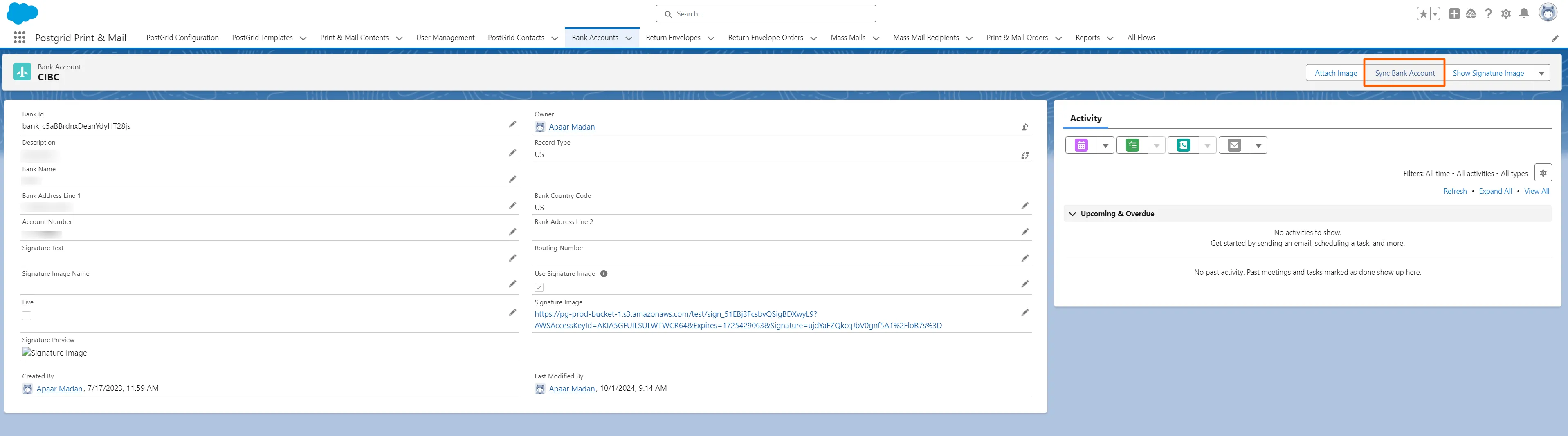
Adding the signature image
Section titled “Adding the signature image”1. Click on any bank account and then click on “Attach Image”
Section titled “1. Click on any bank account and then click on “Attach Image””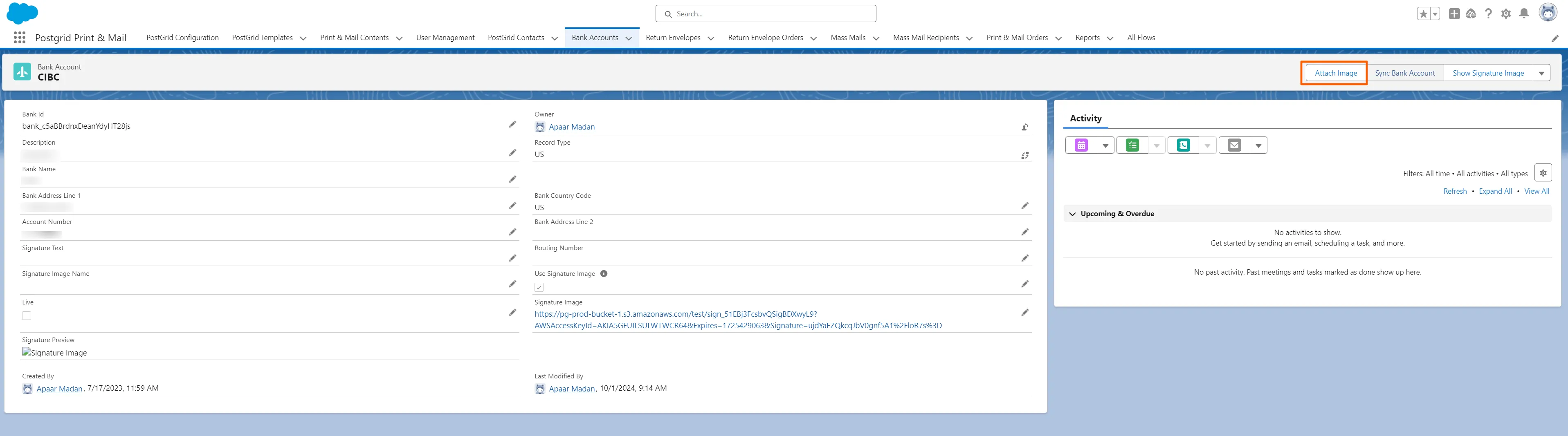
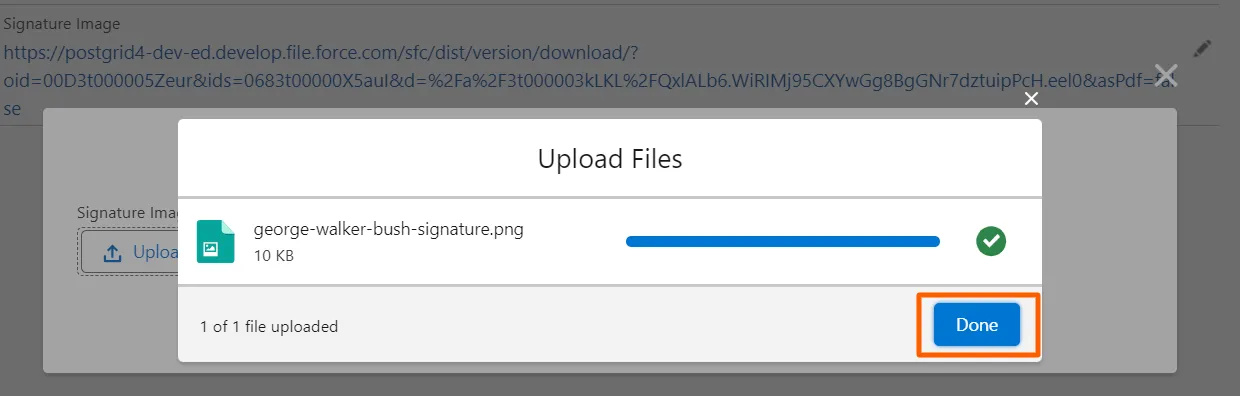
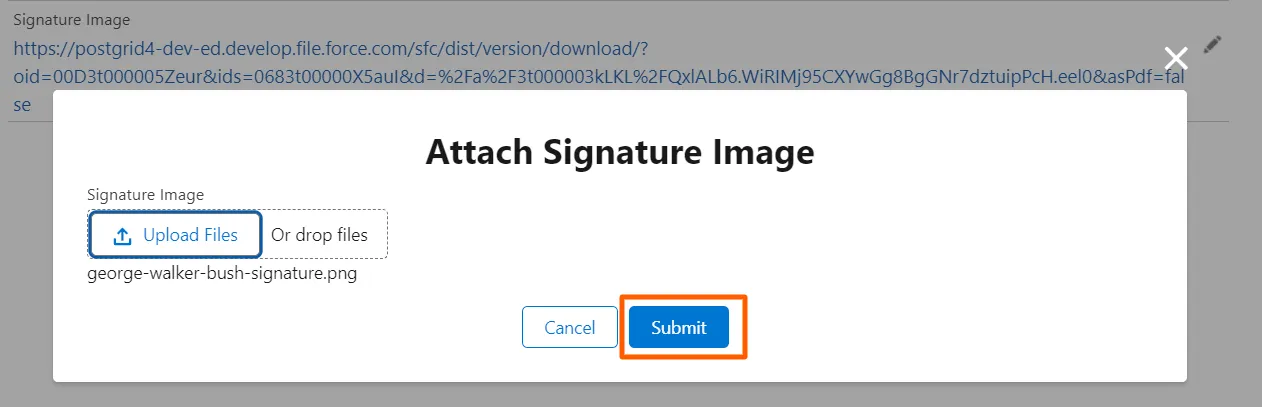
2. Click on Upload to select a file from your local drive. You can also drop the signature image in this section
Section titled “2. Click on Upload to select a file from your local drive. You can also drop the signature image in this section”- Click on “Done”. After the image is successfully uploaded, click on “Submit”
- Please Note: The signature image can only be in the png format. No other format is accepted by the system
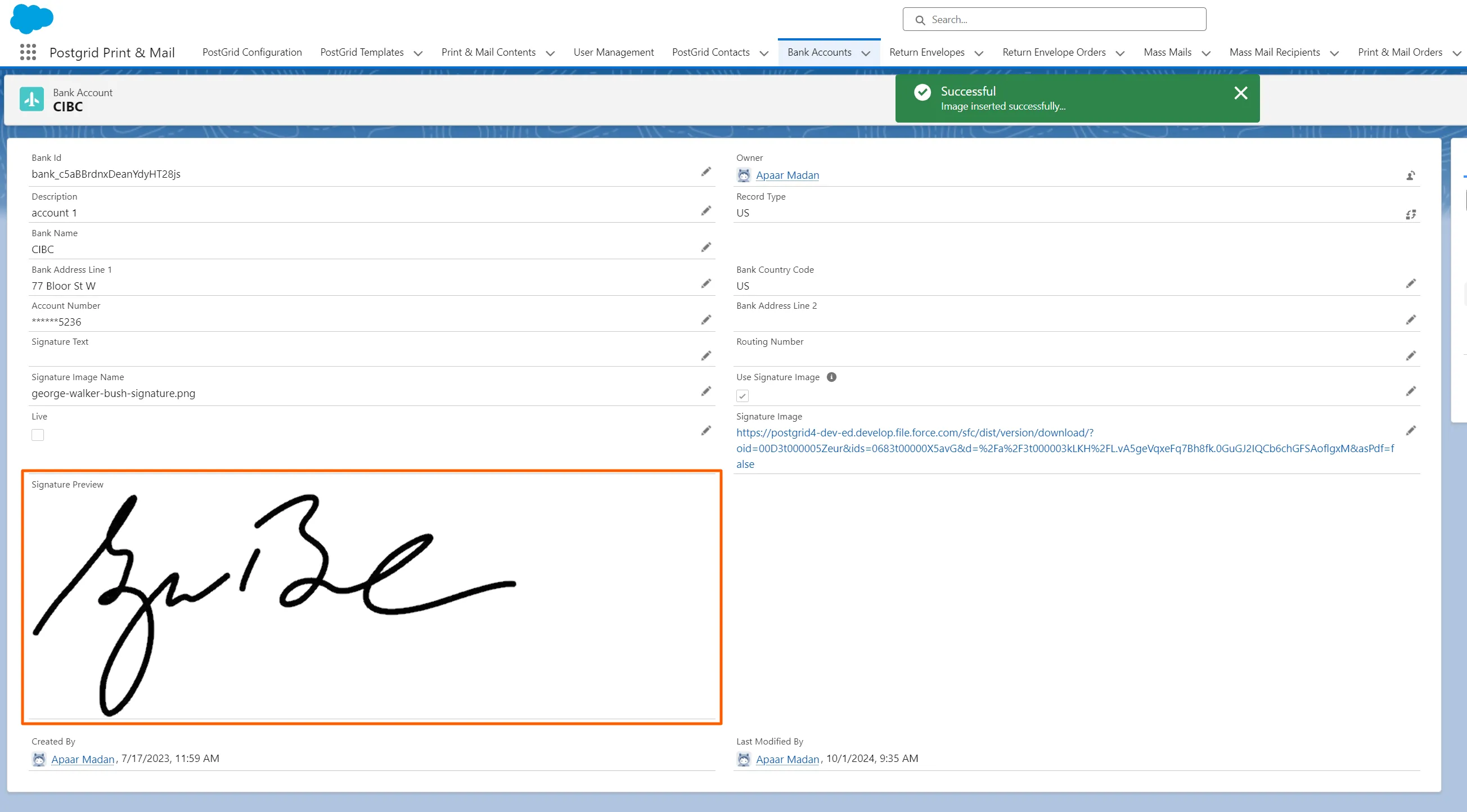
3. You can preview the signature image in the details
Section titled “3. You can preview the signature image in the details”