Enable PostGrid Address Verification in store checkout
How to add the PostGrid app block to your Shopify checkout configuration to enable address verification and autocomplete during checkout.
To make PostGrid Address Verification visible during your Shopify checkout, you must add the PostGrid app block to your store’s checkout configuration.
Follow the steps below to enable it.
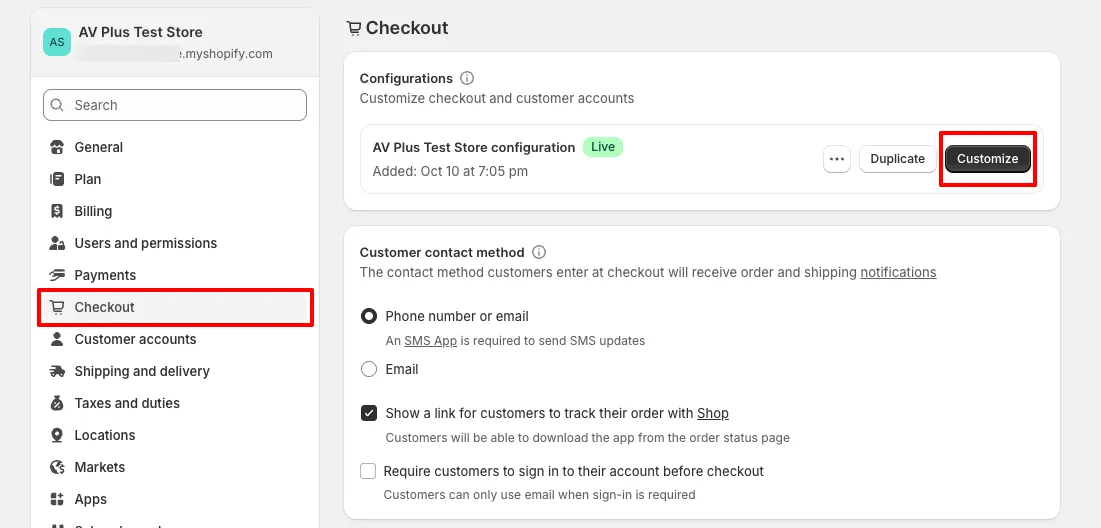
In your Shopify Admin, navigate to Settings page, click on Checkout. Under Configurations click Customize.
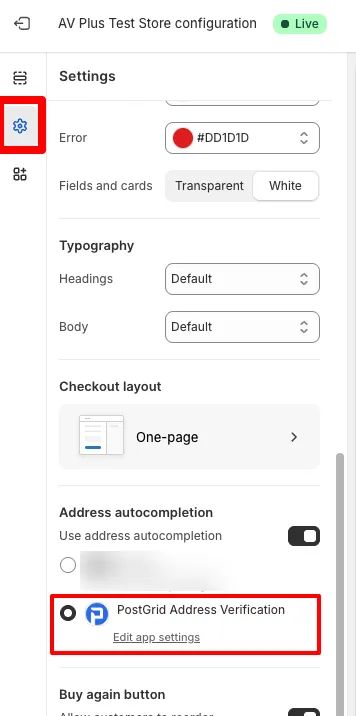
From the left sidebar, click Settings, and scroll down to the Address Autocompletion section, and select PostGrid Address Verification.
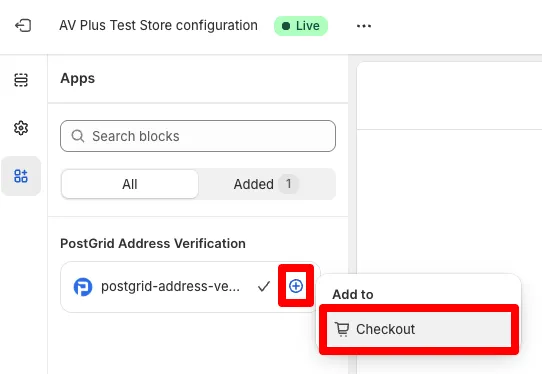
Now, navigate to Apps from the same sidebar. You will see postGrid-address-verification listed with a checkmark. Click on the + button next to the app, and select Checkout.
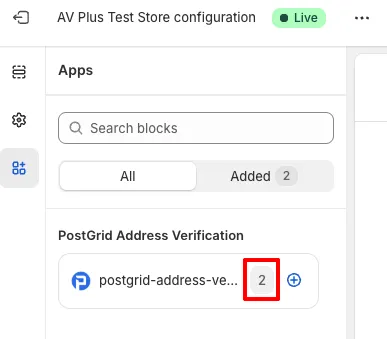
Once the app is successfully added, you will see the checkmark is replaced with number 2. This confirms the app is active and your store checkout is ready to use PostGrid Address Verification.