
Permission Policies
How to create permission policies that grant users an additional set of roles scoped to the organizations you choose, and assign them to the users who need that access.
A permission policy is an additional grant of access: it bundles a set of roles and scopes them to the organizations you choose. Assigning a policy to a user leaves the roles on their own account untouched — the policy’s roles apply only while they are acting on an organization that policy covers.
This lets you delegate access to a sub-organization without giving someone the “Admin” role, which would grant access to every sub-organization as well as to your own organization’s settings.
A support agent who needs to look up mail for one client, or a designer who maintains templates for a handful of sub-organizations, are both good candidates for a policy.
Creating a permission policy
Section titled “Creating a permission policy”Go to Settings → Permission Policies in the left navigation and click Create Policy.
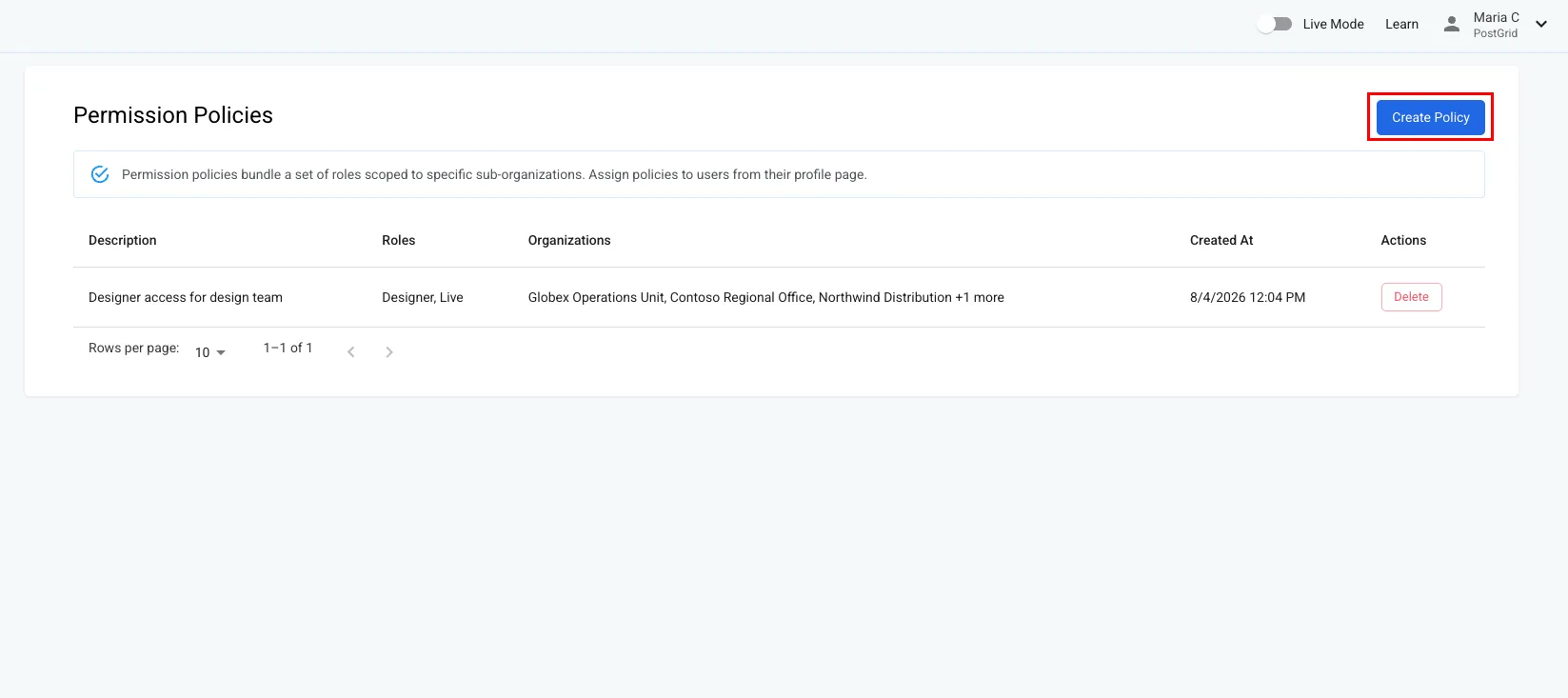
Fill in the three parts of the form:
- Description — how the policy is identified throughout the dashboard, so name it after the access it grants (for example, “Read-only access for support team”).
- Organizations — choose All sub-organizations to cover every sub-organization you have now and any you create later, or Specific sub-organizations and then Select Sub-Organizations to pick them individually. Selected sub-organizations appear as chips you can remove.
- Roles — the roles a user assigned this policy takes on while acting as those sub-organizations. Pick the narrowest set that covers what they need to do. As when assigning roles to a user, Live and View Only only modify another role, so each must be paired with a base role such as Developer or Sender.
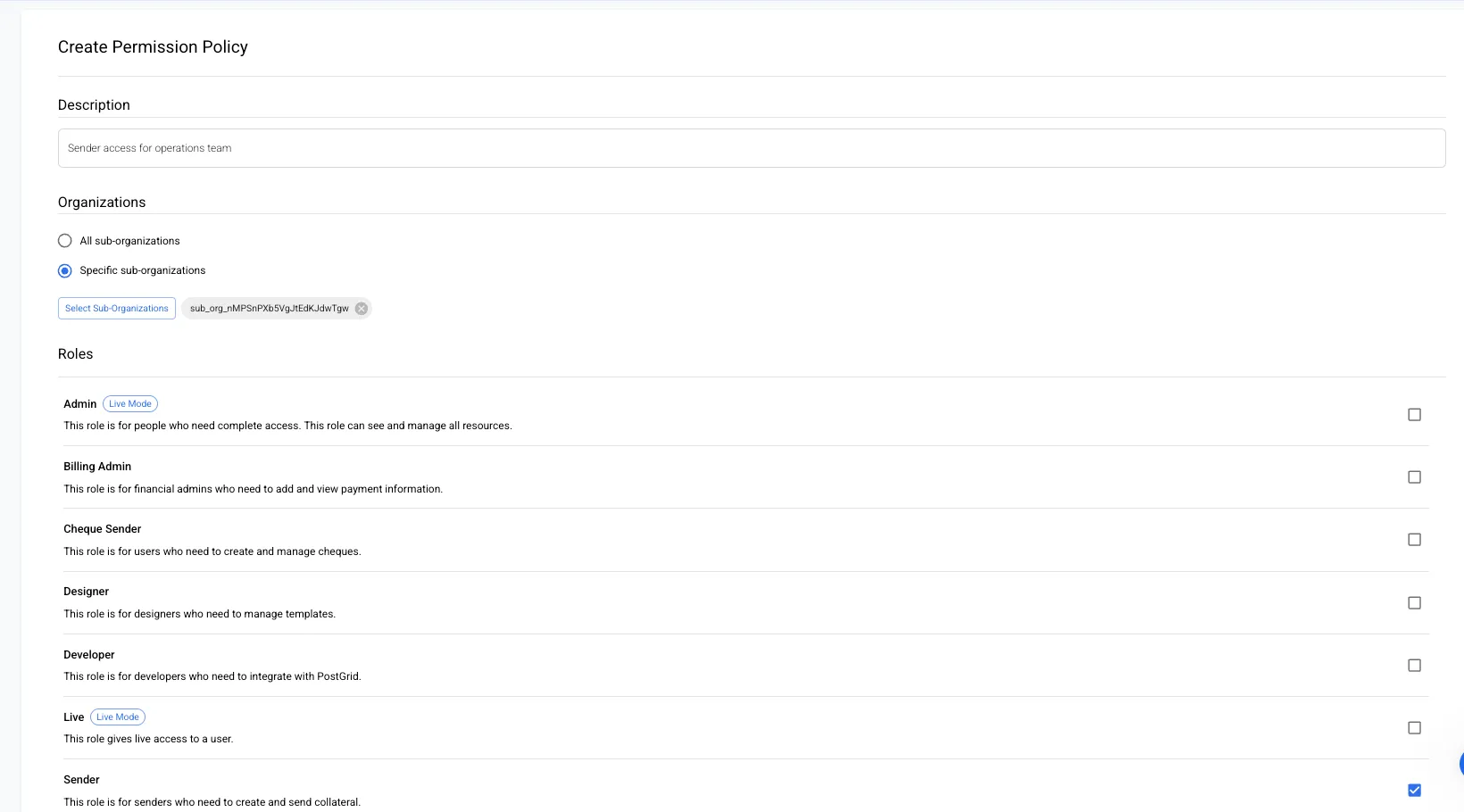
Click Create to save the policy. It has no effect until you assign it to a user.
Assigning a policy to a user
Section titled “Assigning a policy to a user”Go to Users, open the user you want to grant access to, and click Manage Policies in the Permission Policies section. Select the policies to assign and confirm. The section then lists the policies the user holds, each with a Remove action.
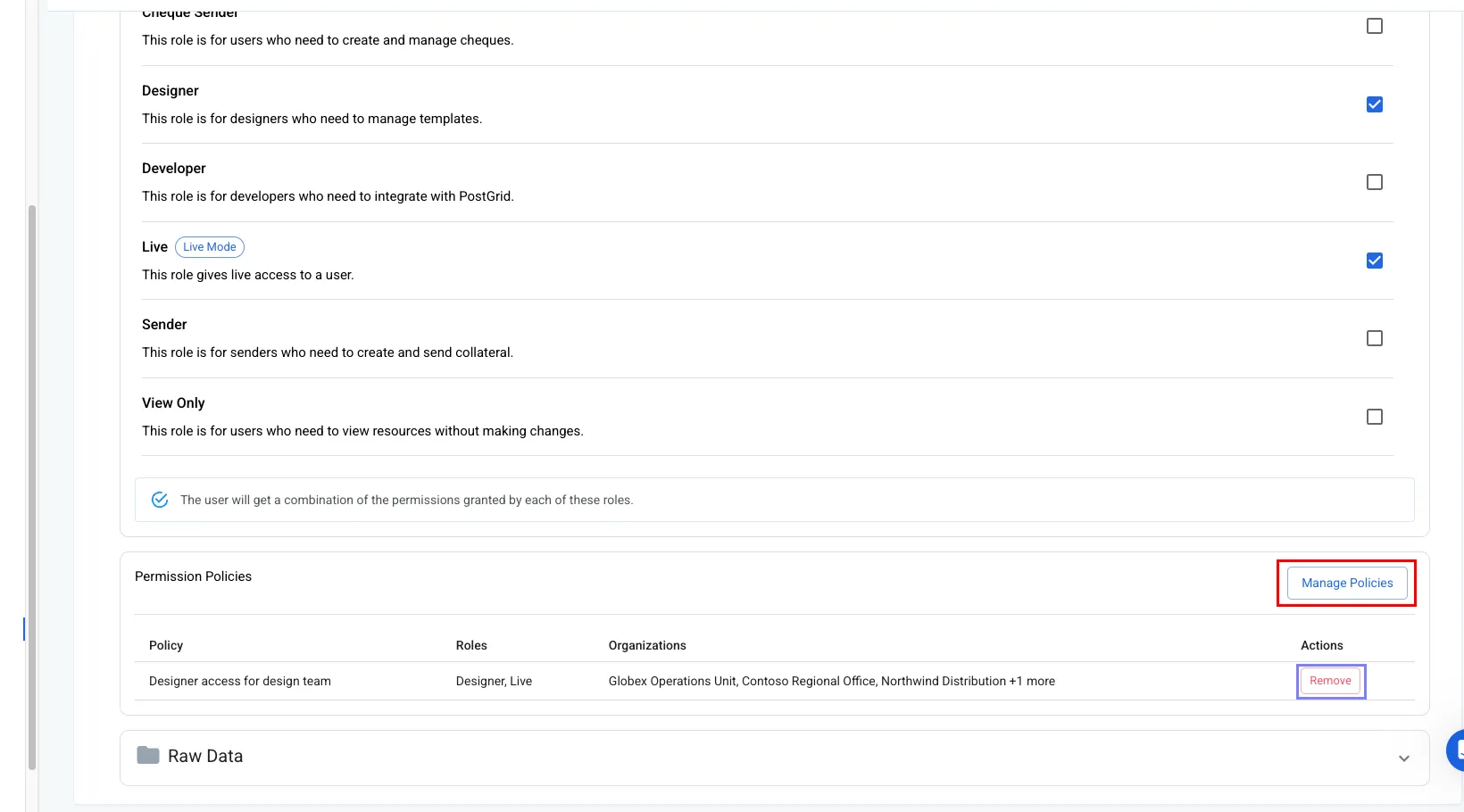
The user takes on each policy’s roles the next time they impersonate one of the sub-organizations it covers. See Impersonating your Sub-Organizations for how they use that access from the dashboard or the API.
A few notes on assignment:
- Policies cannot be assigned to admin users, since admins can already impersonate every sub-organization. The Manage Policies button is disabled on their profile.
- A user can hold several policies. Where two policies cover the same sub-organization, the user receives the combined roles of both.
- Users who have not yet completed their invite cannot be assigned policies. Assign the policy once they have accepted.
Managing existing policies
Section titled “Managing existing policies”The Permission Policies page lists every policy in your organization with its description, roles, sub-organizations, and creation date.
Policies cannot be edited after they are created. To change the roles or sub-organizations a policy covers, create a replacement and delete the original.
Deleting a policy removes it from every user it was assigned to, so a user left with no other policy covering a sub-organization loses access to it immediately.