Sending Bulk/Mass Mail Orders
Create recipient lists and send bulk mail orders to multiple contacts through the PostGrid Salesforce integration.
Creating a Bulk/Mass Mail Recipient List
Section titled “Creating a Bulk/Mass Mail Recipient List”1. Click on Mass Mail Recipients and then click on “New”
Section titled “1. Click on Mass Mail Recipients and then click on “New””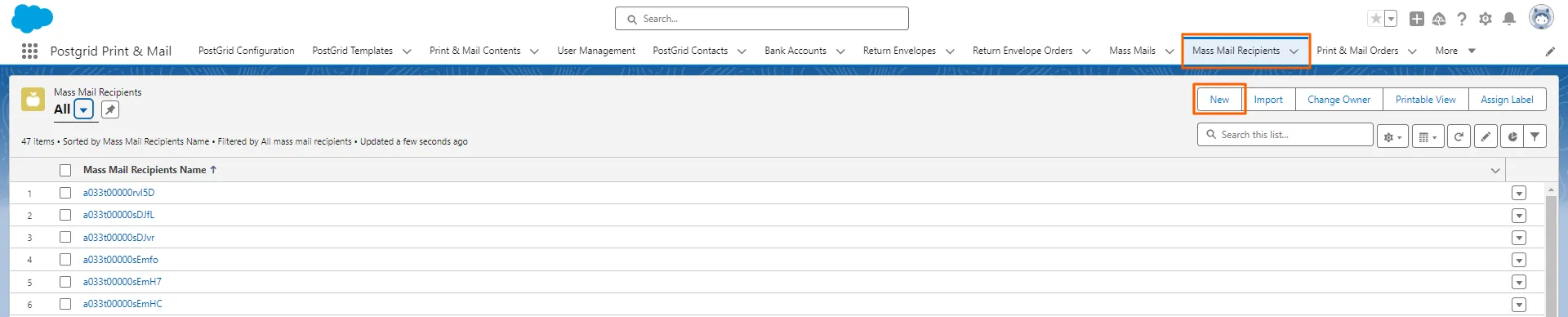
2. Add a name for your Recipient List and select a Country from the drop-down menu
Section titled “2. Add a name for your Recipient List and select a Country from the drop-down menu”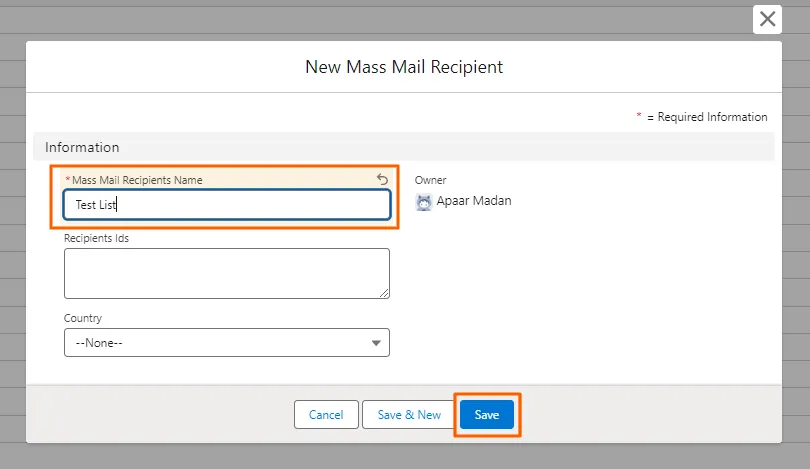
3. Click on the newly created List. Then, click “Select Recipients” and “Save”
Section titled “3. Click on the newly created List. Then, click “Select Recipients” and “Save””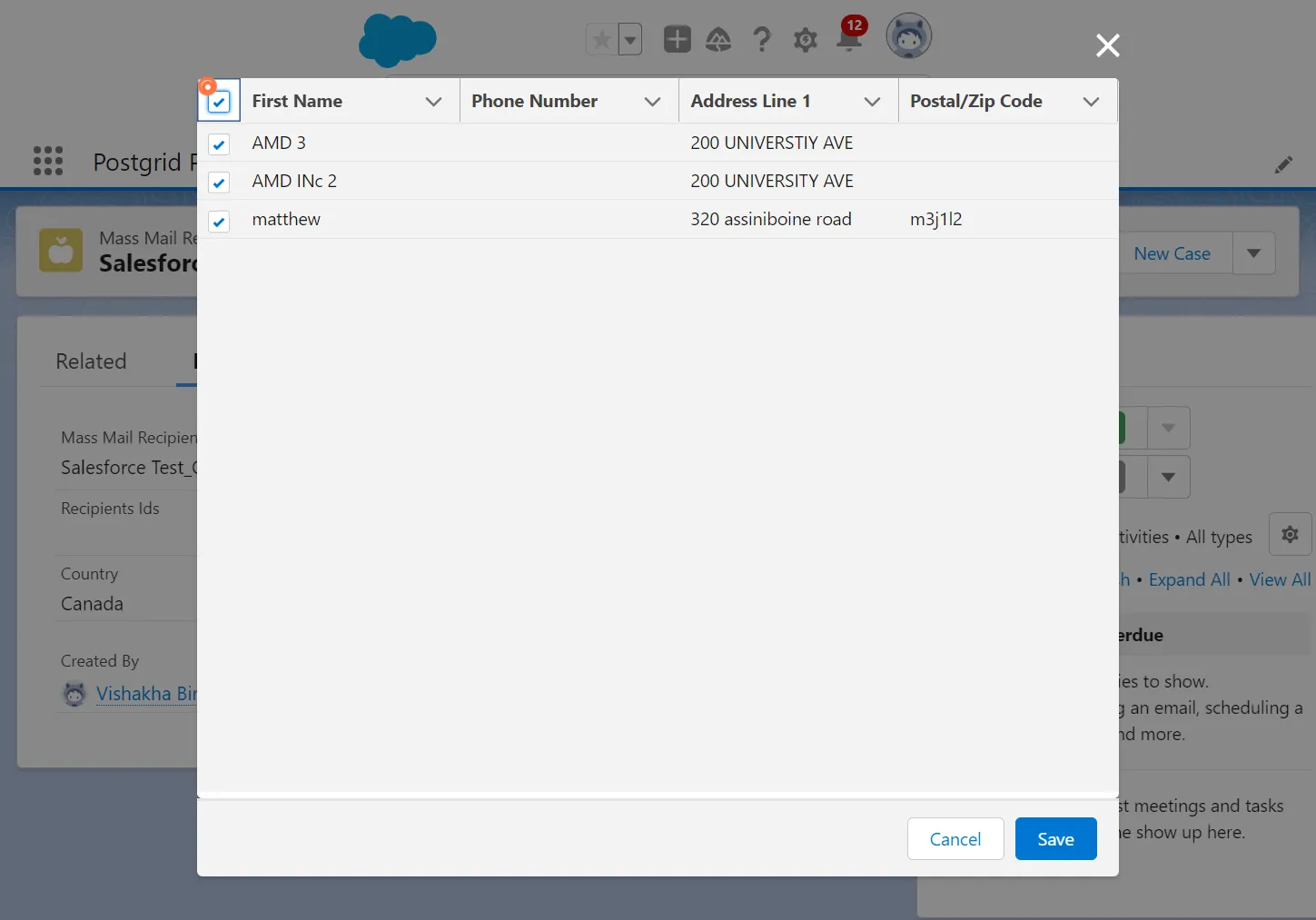
Creating a Bulk/Mass Mail Order
Section titled “Creating a Bulk/Mass Mail Order”1. Click on Mass Mails and click on “New”
Section titled “1. Click on Mass Mails and click on “New””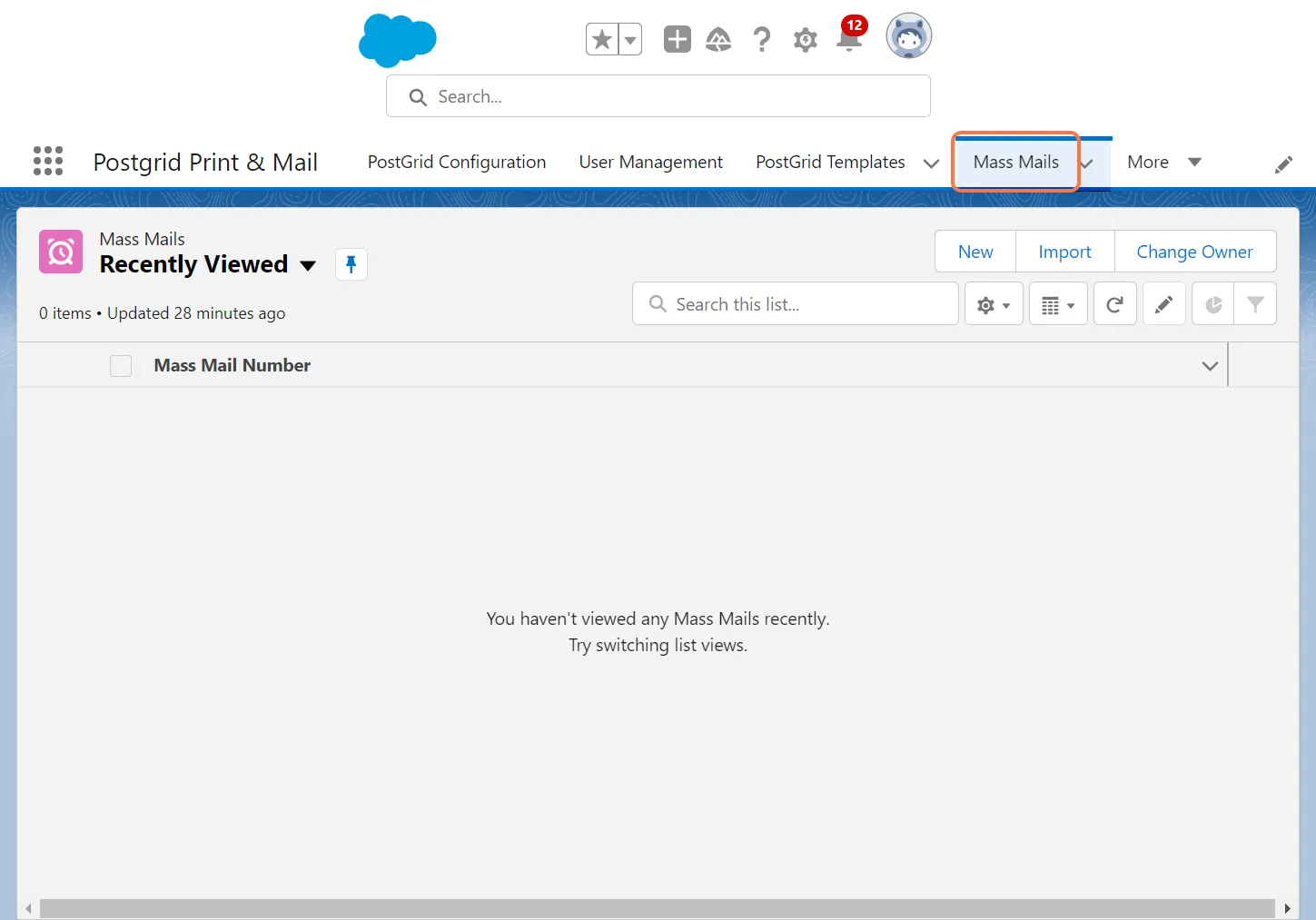
2. Select the Collateral Type and click on “Next”
Section titled “2. Select the Collateral Type and click on “Next””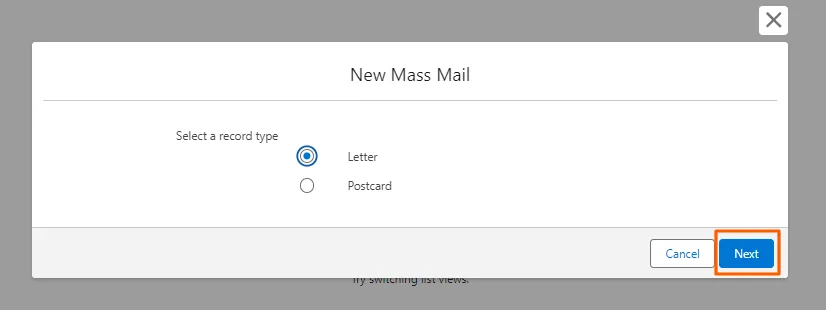
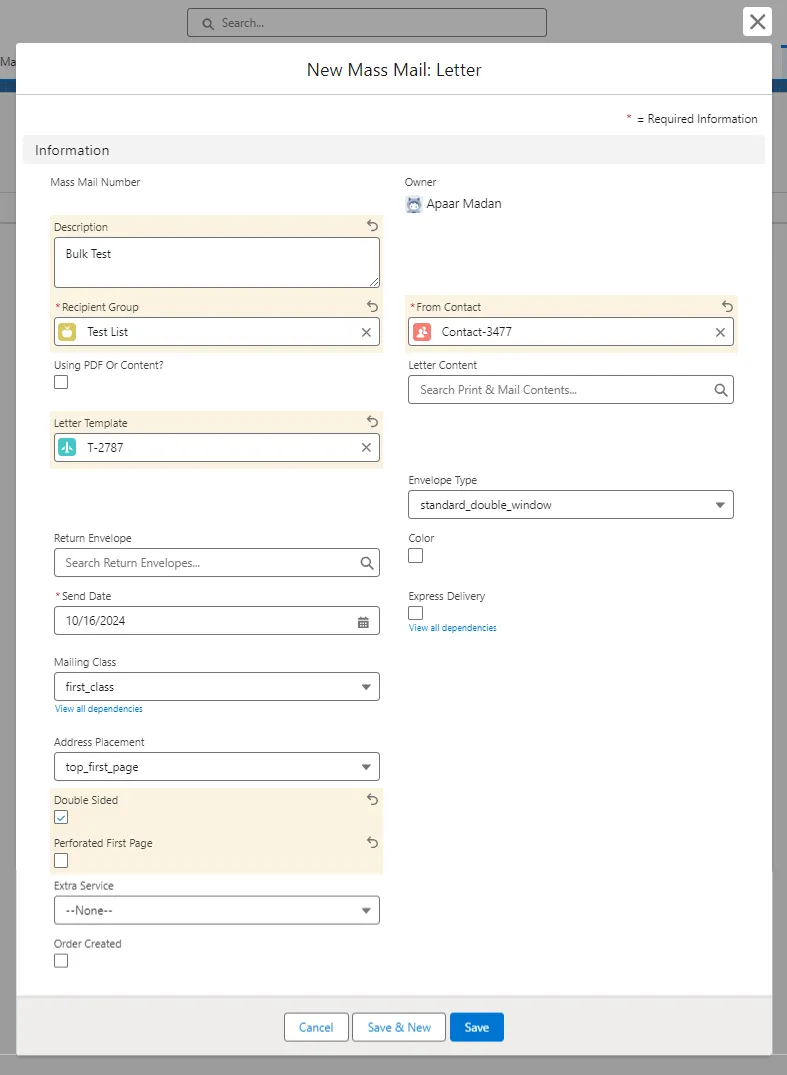
3. Enter the required details
Section titled “3. Enter the required details”- Add a description for the letter order
- Select a Recipient Group, Letter Template/Letter Content and then a Sender Contact from the respective drop-down list
- Choose a Send Date
- Adding additional Services
- Select an Envelope Type
- Click on the “Color” checkbox if you want the document to be printed in Color and the “Express Delivery Checkbox” if you want to opt for Express Delivery
- Select a mailing class from the drop-down menu
- By default, all mail is sent as First Class or the fastest non-express postage available in the destination country.
- Choose where you want the address to be placed
- Click on the “Double Sided” checkbox if you want the content to be printed on both the sides
- Select an Extra Service for your order
- Click on “Save”
Please note: You can either opt for Express Delivery or Select a Mailing Class. You cannot opt for both